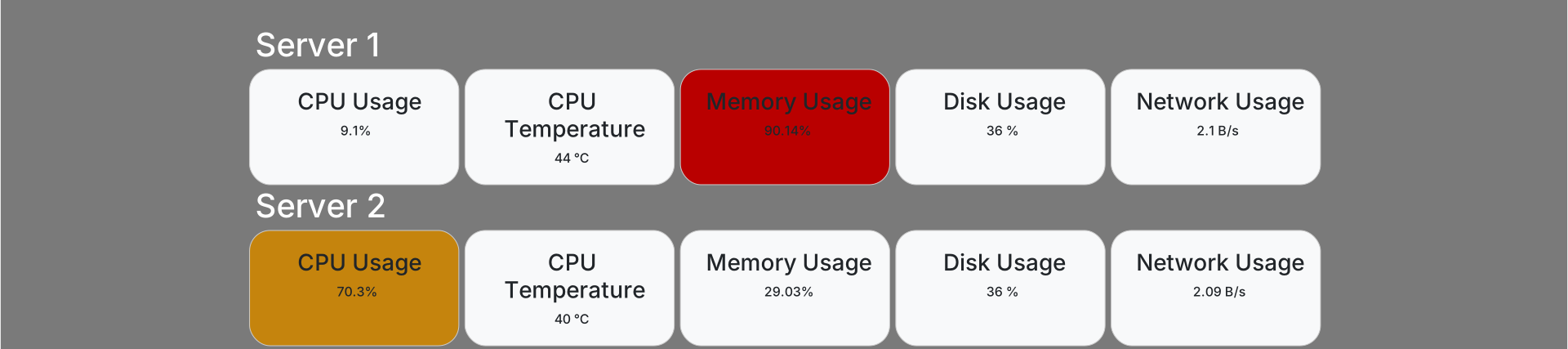
CPU Usage
CPU Temperature
Memory Usage
Disk Usage
Network Usage
Uptime
Information
In my home lab I have several physical and virtual servers. To see how the servers were doing, I would log in via gui or ssh and open taskmanger or htop. Surely there must be an easier way to do this I thought. Of course there are already solutions for monitoring multiple server, but I wanted to try this challenge, why not?
A first step was to figure out what information i need to collect. And what is most important to see. e.g.: how much CPU power is currently being used or what processes are currently running?
Once i sorted that out, i needed to think of a way to get all the data in a secure way and combine them. My first idea was to use 1 json file and let all the servers write there data to it, the problem with that is you can't write to a file that is already being used. Nethertheless, I still use a json file but this file will be kept localy on the server. To tackel that problem i will be using a MySQL DB to store all the data, by using a MySQL DB i can perform calulation on the historic data like what is the avg temperature in a 24h timespan.
Without further ado, let's build this thing
The collecting script
In this section, I will only touch on the linux part without writing to MySQL. If you want more info about the Windows part or the MySQL part, don't hesitate to contact me.
To query the different parameters of the server, I created a script that you see on the right.
It will get the CPU usage, CPU temperature, disk usage of the root and the currently used ingress bandwidth over a 1 sec periode.
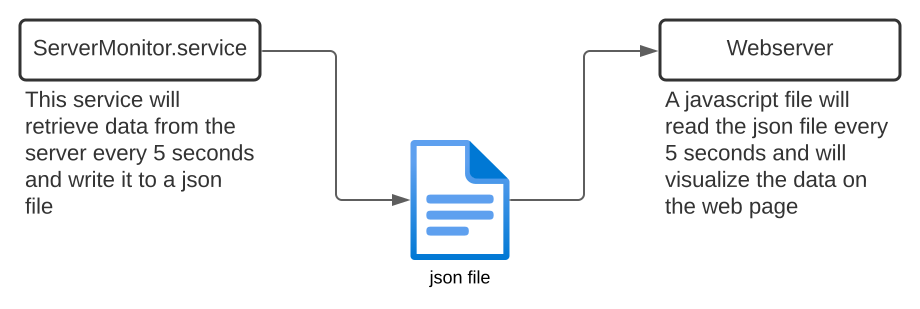
When this script collected all those parameters it will save it to a local json file. Because this script will be utilized in a server monitoring service, it operates within an infinite loop that runs every 5 seconds.
Flowchart
#!/bin/bash

    # Function to get CPU usage
    function get_cpu_usage() {
        local cpu_usage=$(top -bn1 | grep "Cpu(s)" | awk '{print $2 + $4}')
        echo "$cpu_usage"
    }

    # Function to get memory usage
    function get_memory_usage() {
        local memory_usage=$(free -m | awk 'NR==2{printf "%.2f", $3*100/$2 }')
        echo "$memory_usage"
    }

    # Function to get disk usage
    # Here the / after the pcent means root partition
    function get_disk_usage() {
        local disk_usage=$(df -h --output=pcent / | awk 'NR==2{print $1}' | tr -d '%')
        echo "$disk_usage"
    }

    # Function to get network usage
    function get_network_usage() {
        local network_usage=$(ifstat -q 1 1 | awk 'NR==3{print $1}')
        echo "$network_usage"
    }

    # Function to get Current CPU Temperature
    function get_cpu_temperature() {
            local cpu_temperature=$(($(cat /sys/class/thermal/thermal_zone0/temp)/1000))
            echo "$cpu_temperature"
    }


    while [ 1 -eq 1 ]
    do
    # Main script
    output="{"
    output+="\"cpu_usage\": $(get_cpu_usage),"
    output+="\"cpu_temperature\":$(get_cpu_temperature),"
    output+="\"memory_usage\": $(get_memory_usage),"
    output+="\"disk_usage\": $(get_disk_usage),"
    output+="\"network_usage\": $(get_network_usage)"
    output+="}"

    #The monitor.json file will be created in the directory where this script is executed
    echo "$output" > monitor.json
    sleep 5
    done
Creating a service on Linux
To ensure that the script is executed and continues to run in the background, it is advisable to create a service. Although it is possible to achieve this using crontab, the smallest interval available there is 1 minute (unless you make some adjustments).
Creating a service in Linux is relatively straightforward. To do this, you just need to create a file in /etc/systemd/system/ with the name MyScriptService.service. You can refer to the example on the right for how the file should look.
To enable this script (meaning autostart on server up) You need to reload the system by executing the command: "systemctl reload daemon". After reloading, run the command: "systemctl enable MyScriptService".
If everthing is correct a monitor.json file will be created and updated every 5 min.
    [Unit]
    Description=This service is responsible for updating the monitor.json file
    After=network.target
    StartLimitIntervalSec=0

    [Service]
    Type=simple
    Restart=always
    RestartSec=1
    User=root
    ExecStart=monitor.sh
    #Restart=always
    #PrivateTmp=yes

    [Install]
    WantedBy=multi-user.target
Visualise the collected data
Now, you can simply read the JSON file directly, but a more appealing approach is to visualize it on a website, just like you can see at the top of this page. To achieve that, I have prepared a simple example on the right side, which should help you get started in building a more user-friendly graphical user interface. Click here to see the simple page
In the script section, you will notice that in the 'fetchdata' function, the filename is appended with a question mark followed by a JavaScript function that generates a random number. This technique is a way to prevent the browser from using a cached version of the JSON file. If the browser relies on a cached version, the data will not be updated.
    <!doctype html>
<html lang="EN">

<head>
    <title>Server Dashboard</title>
</head>

<body>

    <h3>CPU Usage</h3>
    <div id="cpuUsage"></div>

    <h3>CPU Temperature</h3>
    <div id="cpuTemperature"></div>

    <h3>Memory Usage</h3>
    <div id="memoryUsage"></div>

    <h3>Disk Usage</h3>
    <div id="diskUsage"></div>

    <h3>Network Usage</h3>
    <div id="networkUsage"></div>

    <script>
        function fetchData() {
            //retrieve the monitoring data in JSON format
            fetch('monitor.json?'+Math.random())
                .then(response => response.json())
                .then(data => {
                    // Update the HTML elements with the received data
                    document.getElementById('cpuUsage').textContent = data.cpu_usage + '%';
                    document.getElementById('memoryUsage').textContent = data.memory_usage + '%';
                    document.getElementById('diskUsage').textContent = data.disk_usage + ' %';
                    document.getElementById('networkUsage').textContent = data.network_usage + ' B/s';
                    document.getElementById('cpuTemperature').textContent = data.cpu_temperature + " °C";
                })
                .catch(error => console.error('Error:', error));
        }

        // Fetch data initially and set an interval to update the data periodically
        fetchData();
        setInterval(fetchData, 5000); // Update every 5 seconds
    </script>
</body>

</html>
Finished result